



Discover Araneo Studio v1.2.0 from Luminex
FACE for professionals
FACE for MI Resellers
FACE Project Integration
Please note: LumiNode/LumiCore firmware v2.8.1 is required for most of these new features.
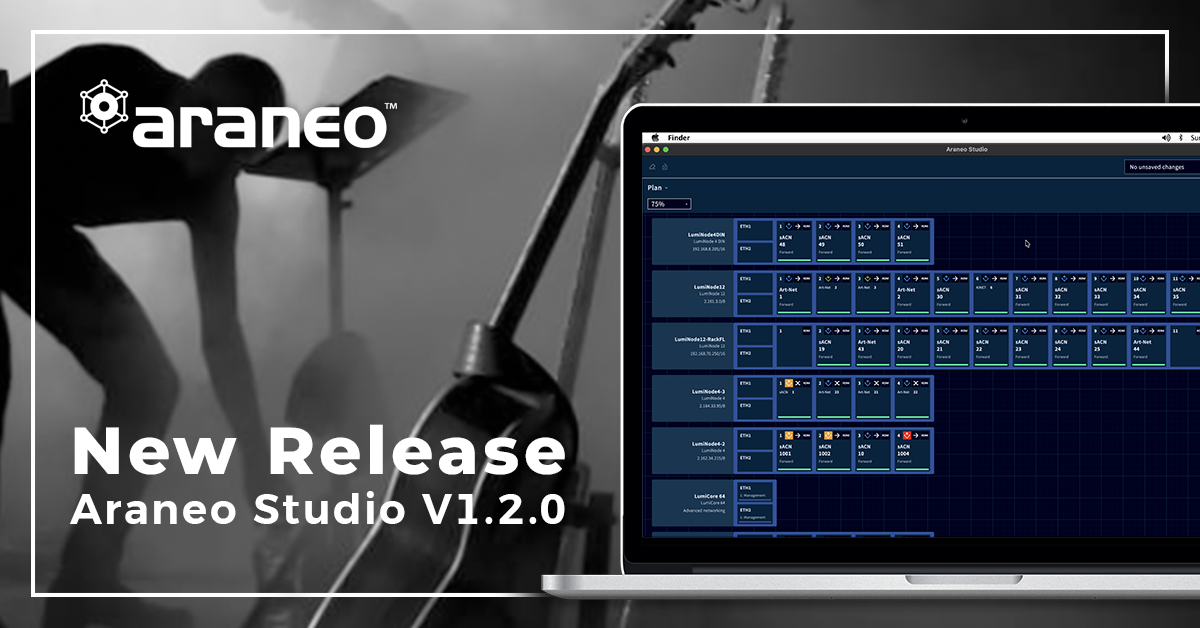
Araneo Studio 1.2.0 is a feature-focused release that introduces new tools and workflow improvements to help you prepare, organize, and manage projects more efficiently. This release focuses entirely on new functionality, including Online and Project Mode, Selection Groups, managing fixtures from a GDTF library, and assigning GDTF profiles during project setup or MVR import.
Online & Project Mode
Projects Dialog
Araneo Studio now always works on a project base. When the application starts, the Projects dialog opens automatically, allowing you to create, open, organize, import, or export projects before you begin working. After a project has been opened, Araneo Studio can automatically re-open the last used project the next time it starts. This behavior can be disabled in Settings. You can also open the Projects dialog at any time by clicking the "Projects" button in the Function bar.
In the Projects dialog, you can:
- Close the currently opened project
- Open an existing project, which closes the currently opened project
- Create a new project, which closes the currently opened project
- Create a new folder
- ...
Device Mapping Pane
The Device Mapping pane helps you link planned project configurations to the correct live hardware.
Devices can appear in one of three modes:
- Live device: a physical device connected to the network, discovered in Araneo Studio, and running its live configuration.
- Project device: a virtual device with a project configuration, added through the Add Device dialog or duplicated from a Live device.
- ...
Add LumiNodes as Project Devices
In Project Mode, click Add Device in the Function bar to add LumiNodes as Project devices.
Select a LumiNode model, then choose:
- The number of LumiNodes to add
- The starting Device ID, which auto-increments for each LumiNode
- ...
Add Fixtures
Next to importing fixtures from an MVR file, you can also add them from a Library of GDTF files.
To do this, click the “Add Device” button and change the dropdown from “Add LumiNode” to “Add Fixture”. “My Library” is your system library of fixtures.
Here you can:
- Upload a GDTF file by clicking the “Upload GDTF” button and selecting a GDTF file.
- Browse the Library by manufacturer, model and revision
- ...
Upgrade to this version from within Araneo or download this from luminex
Read the Full release notes here.


